Apex for Amazon Sellers: a Chrome extension for profit, fees and sales estimates
Apex for Amazon Sellers is free to install from the Chrome Web Store. Its product data opens once you finish Apex University, which comes with every Apex account. On Amazon product pages it shows your profit, ROI and margin at your own cost, Amazon's referral and FBA fees, the most you can pay and monthly sales.
- free to install, and its data opens once you finish Apex University.
- It works on amazon.com product, search and best-seller pages, and on supplier websites you switch on one at a time.
- Monthly sales come from Amazon's own "bought in past month" figure when Apex has one for the product, and from an estimate based on sales rank when it doesn't.
- Your cost fills in from your Apex database or the supplier price lists you've scanned in Apex. Without them, type a cost or read the most you can pay.
- Checking whether you can sell a product needs your Amazon seller account connected to Apex.
This page is for anyone who wants to know exactly what they're installing before they click Add to Chrome. Everything below describes the extension as it runs on real Amazon pages, including the parts it doesn't do. When you're ready, add Apex for Amazon Sellers from the Chrome Web Store.
How it opens: three steps
The extension is the gift for finishing Apex University, the short video course inside every Apex account. Until you finish, the panel on Amazon shows one message, "Finish Apex University to unlock this," with a button that takes you to the course. Knowing that before you install saves you from an extension that looks broken.
- Create an Apex account
Sign up for a free account on the Apex sign-up page. Apex University comes with it. Nine lessons, no card.
- Finish Apex University
Work through the lessons of Apex University inside your Apex account. They unlock one after another, and each one counts once you've watched it there. Watching the same videos on YouTube doesn't count, because the extension asks Apex whether you've finished the course there. Finish the last lesson and the panel opens on every listing.
- Install the extension and sign in once
Open the Chrome Web Store listing and click Add to Chrome. Then open any product on amazon.com and click "Sign in to Apex" in the panel. Apex opens in a new tab, hands your sign-in to the extension, and your open Amazon tabs pick it up. You stay signed in on that browser until you sign out from the extension's menu.
You can install first and finish the course later. Nothing breaks; the panel just waits. If you finished the course on another computer, click "I've finished, check again" in the panel and it asks Apex again.
What it shows on a product page
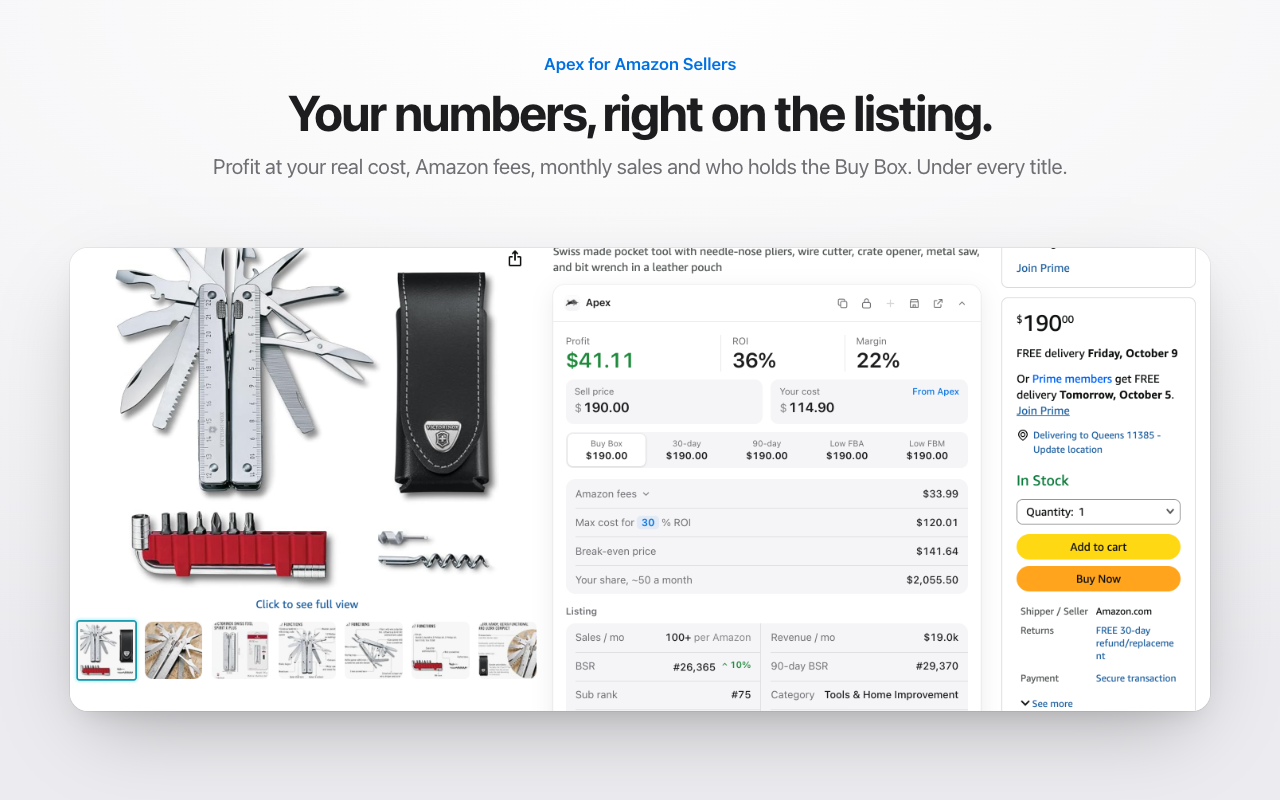
Open any product on amazon.com and the panel appears under the title, where your eyes already are. It reads from top to bottom in the order most buying decisions go: what you'd make, what Amazon takes, how fast it sells, and whether it fits your business. You can collapse it with the arrow at the top right when you just want to shop.
Profit, ROI and margin at your cost
The top row is the answer: profit per unit, ROI and margin. Two boxes feed it.
- Sell price starts at the Buy Box price. Click Buy Box, 30-day, 90-day, Low FBA or Low FBM to try each one, or type any price you like.
- Your cost fills in on its own when Apex knows it. It uses the landed cost from your Apex database first, then a draft cost if that's all there is, then the cheapest price for this product on a supplier price list you've scanned in Apex. A small "From Apex" tag shows when the number came from your account, and hovering over the box says which supplier it came from. You can always type over it.
One example, read straight off the screenshot above: at a $190.00 sell price and a $114.90 cost from Apex, the panel shows $41.11 profit, a 36% ROI and a 22% margin.
Amazon's fees, the most you can pay and break-even
- Amazon fees is the referral fee plus the FBA fulfillment fee at the price you picked. Click the row to split it into each fee and see what you keep per unit. The FBA fee comes from Amazon's own fee estimate for that product. The referral fee is worked out from the product's category at the price you choose, and Apex works the fees out again whenever you change the price. If you want to know how each fee is set, read referral fees by category and how size tiers drive the FBA fee.
- Max cost for your target ROI is the most you can pay a supplier and still make the return you want. The target starts at 30%. Change it right in the row and the extension remembers it, on product pages, search results and supplier sites alike.
- Break-even price is the lowest sell price that still covers your cost and Amazon's fees. It tells you how much room you have if the price drops.
- Your share takes the listing's monthly sales, splits them evenly between you and the FBA sellers already on it, and multiplies by your profit. Real listings rarely split evenly, so read it as the rough size of the prize, not a forecast.
In the same screenshot, a 30% target gives a max cost of $120.01, and the break-even price is $141.64.
When Amazon hasn't shared an FBA fee for a product yet, the fee split says "Not known yet" and the fees total counts only the referral fee. On a listing like that, open the split before you trust the profit.
Sales, rank and the listing at a glance
Below the money rows is the listing itself, laid out so you don't have to scroll down to Amazon's product details:
- Sales per month. When the page shows Amazon's own "bought in past month" badge, or Apex has seen one for this product recently, the panel uses Amazon's figure and labels it "per Amazon." When there isn't one, Apex estimates sales from the sales rank, calibrated on Amazon's own badges across many products, and shows a low and high range beside the estimate.
- Revenue per month, which is monthly sales times the sell price.
- Sales rank (BSR), with a small arrow when it's selling noticeably faster or slower than its 90-day average, plus the 90-day rank, the subcategory rank and the category.
- Offers, with how many are FBA, and who holds the Buy Box. When Amazon itself holds it, the panel marks it in red. When Apex knows which seller holds it, click their name to open their storefront.
- Brand, size tier, weight and parent ASIN, which you'd otherwise dig out of the listing details. Click the parent to jump to it.
Warning tags appear above the listing when they apply: Hazmat, Meltable, Expiration dated, and Amazon sells this.
Seasonality
A two-year heatmap shows which days this kind of product tends to sell faster or slower. The red line is today. Behind it is the past year; the shaded side ahead is the year it hasn't reached yet, and a line under the chart names the fastest stretch ahead and how many days away it is. It's projected from the category's shopping seasons, not this product's own sales history, and it's the same chart you get on the FBA calculator page.
The buttons along the top
- Copy ASIN puts the ASIN on your clipboard.
- Check if you can sell it asks Amazon, through the seller account you've connected to Apex, whether your account can list this product. The answer shows as Ungated, Needs approval, Can't sell, or Amazon didn't say.
- Add to Apex saves the product to your Apex database as a draft, with the cost in the panel. Saving to your database needs an Apex plan.
- Sell on Amazon opens Seller Central's page for listing this ASIN, where you finish the listing yourself.
- Open in Apex opens your Apex database, searched for this product.
Search result badges
On search results, best-seller lists and category pages, every product gets one quiet line under its title. Product pages are left alone, because the full panel lives there.
Where Apex knows your cost, the badge shows profit and ROI: green when it clears your target ROI, amber when it makes money but less than your target, and red when it loses money. Where Apex doesn't know your cost, the badge says Buy under followed by the most you can pay for your target ROI. That number needs nothing from you, so it works on a brand you've never bought.
The same line adds monthly sales, then whatever else applies: Ungated, Gated or Can't sell for products you've already checked, In Apex when the product is in your database (or, when it isn't, how many of your suppliers carry it), and Hazmat. A number with a plus sign, like 900+, means at least that many a month. Hover over a badge for the detail behind it: the sell price, the fee split, where your cost came from, the rank and the offer count. New results get badges as you scroll or change filters.
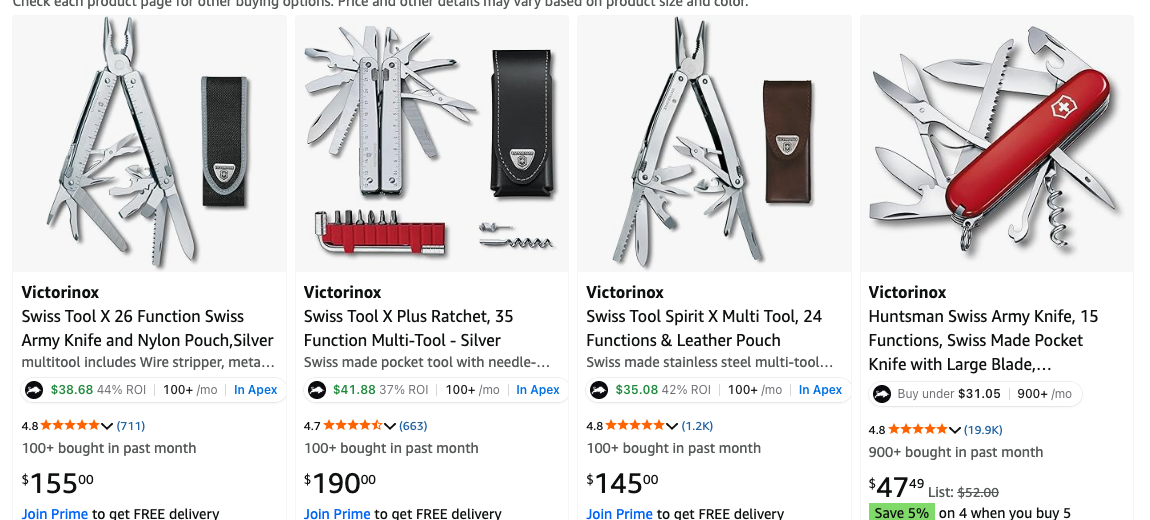
This is a quick way to work through a brand. Search the brand's name on Amazon and the badges sort the page into products worth a closer look and products to skip, before you open a single listing. When a product looks good, open it and the panel gives you the full picture.
Apex University comes with a free Apex account: nine lessons, no card.
Supplier sites with Amazon in view
Some distributors show their catalog on a website instead of sending a spreadsheet. On those sites, the extension can put Amazon's numbers next to the barcodes on the page.
It stays off until you switch it on, one site at a time. Open the supplier's site, click the Apex icon in Chrome's toolbar, and flip the switch for that site. Chrome asks you to allow that one site, and from then on the overlay runs there on every visit until you switch it off. It never asks to read every website.
Once it's on, the extension looks for UPC, EAN and GTIN codes (12 to 14 digits) on the page and checks each code's check digit, so most other long numbers, like order numbers, are left alone. After each real barcode it adds a badge:
- the matching ASIN, which opens the Amazon listing when you click it,
- profit and ROI where Apex knows your cost, or Buy under where it doesn't,
- monthly sales, and Hazmat when it applies.
When one barcode matches more than one Amazon listing, the hover lists the others. A small tally in the corner of the page counts how many of the products on it are on Amazon and, where Apex knows your cost, how many clear your target ROI.
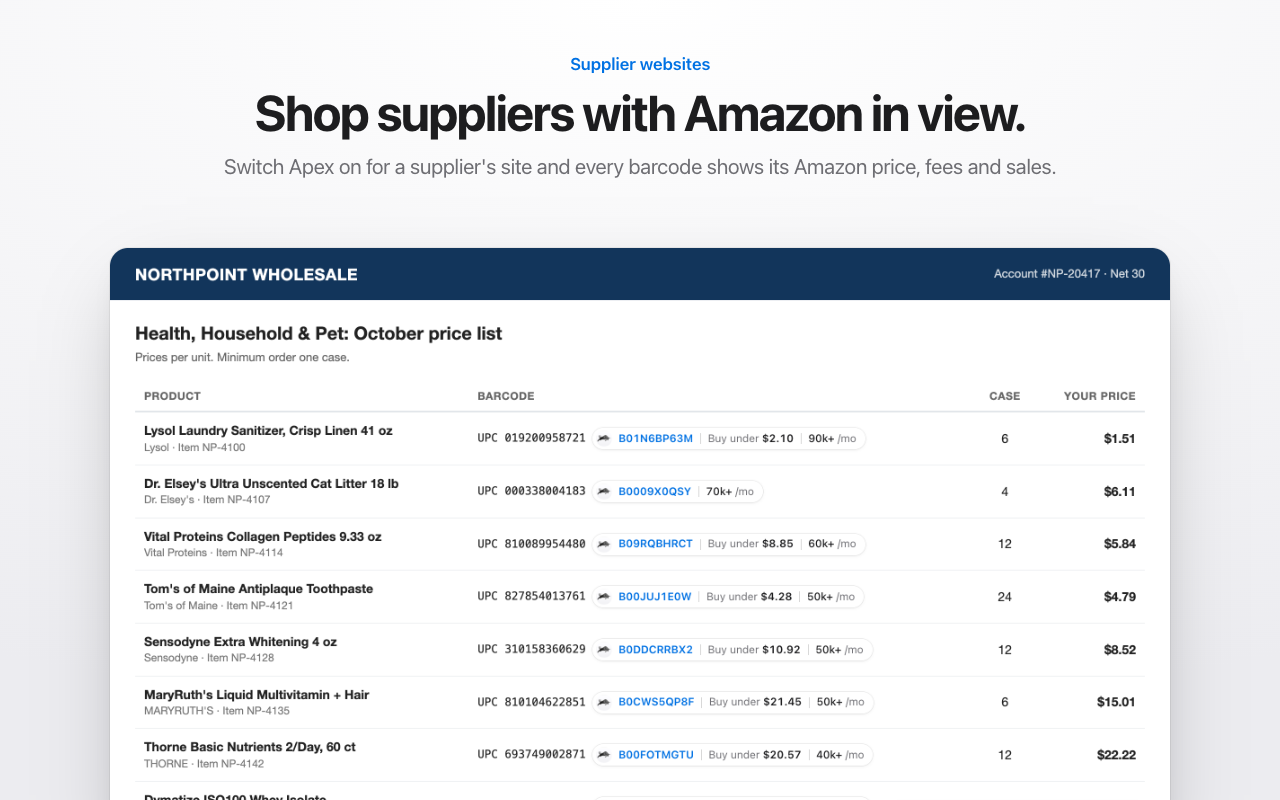
The extension doesn't read the supplier's price on the page. So read across the row: when the supplier's price is below the Buy under figure, that product is worth a closer look. For a whole price list, our guide to analyzing a supplier price list walks through the checks that come after this first pass.
What it does not do
Here's where the extension stops.
Sales are estimates unless Amazon shows its own figure
Amazon's "bought in past month" badge is rounded (100+, 1K+) and only appears on some listings. When there's no badge, the number is a model built from sales rank, and rank moves with seasons, stockouts and price changes. Read the range, not just the middle number, and look at the 90-day rank before you buy deep.
The fees are the selling fees, not every cost
The panel counts the referral fee and the FBA fulfillment fee. It doesn't include storage fees, the inbound placement fee, prep and labeling, freight to Amazon or returns. If your Apex database holds a landed cost, the cost figure already carries what you put into it. Otherwise, add those costs yourself before you trust a thin margin. The Amazon FBA fees guide walks through every fee.
"Your cost" needs your Apex data
The extension only knows your cost when the product is in your Apex database or on a supplier price list you've scanned in Apex. Scanning price lists is part of a paid plan: Beginner scans 2 price lists and up to 20,000 lines a month. Without those, type your cost into the panel, or use the Buy under figure, which needs no cost at all.
Eligibility needs your Amazon account connected
"Check if you can sell it" asks Amazon about your own seller account, so it only works when that account is connected to Apex. The answer is about your account, not about the product in general, and only Amazon can approve you to sell something that needs approval. To work toward an approval, start with how ungating works and the list of gated categories.
It runs on amazon.com, in Chrome on a computer
The panel and badges run on amazon.com only, so Amazon's other marketplaces show nothing. Google's help page for the Chrome Web Store describes adding extensions to Chrome on your desktop. It also says you can't add extensions in Incognito mode or as a guest, and that from your phone you can tap Add to Desktop, so the extension installs the next time you open Chrome on your computer.
It reads barcodes, not prices, PDFs or spreadsheets
The supplier overlay reads barcodes printed on a web page. It doesn't read the price in the row, and it doesn't open price lists that arrive as a PDF or a spreadsheet. Those are a job for a scan in Apex Green, or for the price list method done by hand.
No price history chart
You get the 30-day and 90-day averages and the rank trend, not a full price and rank history. For that you need a price history tool such as Keepa, and our guide to reading a Keepa chart shows what to look for.
It doesn't buy, list or change prices
Add to Apex saves a draft in your Apex database, and Sell on Amazon opens Amazon's own listing page for you to finish. The extension never places an order, creates a listing or changes a price.
It doesn't read the rest of your browsing
On amazon.com product, search and category pages, it reads the ASINs, the price shown, the "Sold by" name and Amazon's public "bought in past month" figure. On a supplier site you've switched on, it reads the barcodes. It sends the ASINs, prices, barcodes and "bought in past month" figures to Apex to get your numbers back. It doesn't read any other website, form fields, passwords, payment details, messages or your browsing history, and it doesn't send the addresses of the pages you visit. The "bought in past month" figures are stored with the product only, not with you or your account, so they can improve the sales estimates. The full wording is in the Chrome extension section of our privacy policy.
It's one of several Apex seller tools. If you'd rather check a product without installing anything, the FBA calculator and the profit calculator work in any browser.
Questions about the Chrome extension
What does Apex for Amazon Sellers cost?
Free to install, and its data opens once you finish Apex University. Apex University comes with a free Apex account. A plan adds what fills in your own costs, like supplier price list scans. Beginner, the smallest plan, starts with a trial: 7 days free, then $49.99 a month, plus tax where applicable. Card required, nothing charged until day 8. Cancel any time before then.
Why does the panel tell me to finish Apex University?
Because the extension is the course's graduation gift. Until you've finished every lesson, Apex answers the extension with a lock instead of product data, and the panel shows a button to the course. Once you finish, click "I've finished, check again" and the panel opens.
Do I need a paid Apex plan to use the extension?
Not for the numbers on Amazon's pages. Those open when you finish Apex University, on any Apex account. A plan matters for what fills in your own costs automatically: your product database and the supplier price lists you scan. Add to Apex needs a plan too, because it saves to that database. Without a plan, type your cost or use the Buy under figure.
Does it work on Amazon marketplaces outside the US?
No. The panel and badges run on amazon.com only. On Amazon's other marketplaces, such as Canada or the UK, the extension shows nothing.
How accurate are the extension's monthly sales numbers?
When the page shows Amazon's own "bought in past month" badge, the panel uses Amazon's figure and says so. Otherwise it's an estimate from sales rank, calibrated on Amazon's badges and shown with a range. Rank moves with stockouts, price changes and seasons, so a single estimate can be off. Read the range and check the 90-day rank before you place a big order.
Does the extension see every website I visit?
No. It reads amazon.com pages, the Apex sign-in page, and supplier sites you've switched on yourself, one at a time. It doesn't read other sites, form fields, passwords or your browsing history. The details are in our privacy policy.
How is the extension different from the FBA calculator page?
The FBA calculator runs on our website with nothing to install. Paste an ASIN and you get the fees, including inbound placement, plus profit and seasonality (3 free lookups, then sign in with a plan). The extension shows the same kind of numbers on Amazon's own pages, adds search badges and supplier barcodes, and fills in your cost from Apex, once you finish Apex University.
Paste an ASIN for its Buy Box price, Amazon fees and your profit at your cost.
New sellers under $5,000 a month in Amazon sales. 2 supplier price lists a month, up to 20,000 lines, 500 products, purchase orders and profit and loss.
7 days free, then $49.99 a month, plus tax where applicable. Card required, nothing charged until day 8. Cancel any time before then.
Sources
- Install and manage extensions, Chrome Web Store Help (Google)
We build software for Amazon sellers who buy from wholesale suppliers, and we write these guides from what we see in that work.
Ten checks that turn a supplier price list into a buy list: UPC matches, landed cost, fees, ROI, sales, competition, approval and when to walk away.