How to automate Amazon review requests the right way
Amazon gives you a Request a Review button, not a schedule. You click it once per order, between 5 and 30 days after delivery, and Amazon emails the buyer its own message asking for a product review and seller feedback. Automating it means sending that same request for every eligible order, without incentives and without choosing buyers.
- Request a Review sends Amazon's own message, in Amazon's wording, asking for a product review and seller feedback in one email. You can't edit it, and the buyer can't reply to it.
- Each order gets one request, inside a window an Amazon staff member and Amazon's own API both put at 5 to 30 days after delivery.
- Automation is fine when the tool sends that same request to every eligible order. Picking buyers, offering anything, or asking for positive reviews is what gets sellers in trouble.
- On a shared wholesale listing, the product reviews belong to everyone selling it. The seller feedback is yours.
- No tool can promise you a number of reviews. A request is a reminder, not a review.
Most sellers know the Request a Review button exists. Far fewer press it on every order, every day, inside the window Amazon allows. That gap is the whole reason review request automation exists. It's also where sellers get into trouble, because some tools do a lot more than press the button.
This guide covers what the request sends, what Amazon's rules allow, the ways to send it for every eligible order, what we learned sending these requests through Amazon's API for our own software, and what no tool can promise. It's written for resellers on shared listings, so it also covers whose reviews you're actually building.
Everything here about Amazon's rules comes from Amazon's own US pages, its Selling Partner API documentation and an Amazon staff reply on the US Seller Forums. Amazon's Seller Central help page for Request a Review needs a sign-in, and we could not open it for this update, so check it from your own account before you rely on the details. Our editorial policy explains how we check sources.
Does Amazon send review requests automatically?
Not the one you control. Amazon's Customer Reviews page for sellers describes Request a Review as something you click on each order's details page. None of Amazon's seller pages we read mention a setting that sends it for every order. If you never press it, those buyers never get that request from you.
Buyers can always review on their own. Amazon's help pages tell shoppers they can write a review from the product page or from Your Orders, and rate a third-party seller for up to 90 days from the order date. Sellers often say Amazon also reminds buyers itself. Amazon's seller pages don't say when or to whom, so treat that as a bonus you can't plan around.
So "automatic" in this topic means one thing: something presses Request a Review for you, on every eligible order, at a sensible time. That something can be you with a daily routine, or it can be software.
What Request a Review actually sends
The request is Amazon's, start to finish. Here is what that means in practice.
| Question | Answer | Where it comes from |
|---|---|---|
| Who writes the message? | Amazon. You can't add text, a logo, a coupon or a link. | Amazon's Request a Review feature and its API |
| What does it ask for? | A product review and seller feedback, in the same email | Amazon staff reply on Seller Forums; Solicitations API |
| How many per order? | One | Solicitations API |
| When can it go out? | Between 5 and 30 days after the order is delivered | Amazon staff reply; Amazon's API error message |
| Can the buyer reply to you? | No. It doesn't land in your Buyer-Seller Messages either. | Solicitations API |
| Which orders qualify? | Amazon decides, order by order | Solicitations API |
A few of those deserve a sentence more.
One email, two asks. In Amazon's Solicitations API, the only request type on offer sends "a solicitation to a buyer asking for seller feedback and a product review for the specified order." The button in Seller Central sends the same thing. An Amazon staff reply on the US Seller Forums says the same: one email, asking for both.
One per order. The API documentation tells developers to send only one review and feedback request, or one free-form proactive message, per order. There's no follow-up and no second try.
The 5 to 30 day window. The same Amazon staff reply says you can request a review once per order between 5 and 30 days after the order delivery date. We have seen Amazon enforce it, too. More on that below.
Amazon decides eligibility. The API lets an app ask Amazon which request types are available for a given order before it sends anything. Some orders simply won't offer one, and no tool can change that.
Whose reviews are you building on a shared listing?
If you resell brand-name products, this part matters more than any setting.
Product reviews belong to the listing. Every seller on that ASIN shares one product page, so a review your buyer leaves sits next to reviews from everyone else's buyers. Amazon's Community Guidelines say product reviews shouldn't be only about the seller, customer service, shipping, packaging or the condition an item arrived in. Those belong in seller feedback.
Seller feedback belongs to you. Amazon asks shoppers to rate third-party sellers "to let other customers know your experience." That rating follows your storefront, not the product.
Request a Review asks for both at once. So for a reseller, every request does two jobs: it adds to the reviews on a listing you share with other sellers, and it's the main way you ask buyers to rate you.
That has a practical side. On a shared listing, the review count moves with every seller's sales, so it's a poor way to judge whether your requests are working. Your own seller feedback is the cleaner signal. It also means the parts of the experience you control as a reseller (the right item, matching the listing, in good condition) are exactly what seller feedback rates.
What Amazon's rules allow, and what gets accounts in trouble
That's how Amazon sums up the rule on its Customer Reviews page for sellers, which tells sellers to follow its community and communication guidelines. The communication guidelines themselves sit in Seller Central behind a sign-in, and we couldn't open them for this update. Amazon's Community Guidelines, which anyone can read, give a shopper's eye view of what's allowed. One of their examples of an acceptable seller message is a neutral "please share your honest feedback" request. A plain, unconditional ask is fine.
Here is what Amazon's pages rule out, in plain words.
- Anything in exchange for a review. The Community Guidelines list payments, refunds, discounts, products, gift cards, warranties and services. Amazon says this covers compensation offered through any channel, social media included.
- Offering anything to change or remove a negative review. The guidelines say the ban applies even when a seller offers a refund to remove or change a negative review.
- Reviews from people close to you. Your own reviews, and reviews from friends, relatives, employees or business associates, aren't allowed, and neither are reviews of a competitor's product.
- Steering unhappy buyers away from reviewing. Amazon lists "contact our customer service team before leaving a negative review" style messages among the violations it asks shoppers to report.
- Inserts and QR codes with strings attached. Amazon's examples include a gift card in the box for a 5-star review, and a QR code that requires a review to register a warranty.
- Choosing who gets asked. The public pages above don't spell this one out, but asking only the buyers you expect to be happy is an attempt to influence ratings, which is exactly what Amazon tells sellers not to do. It's the same problem whether a person or a filter does the choosing.
A compliant request next to one that isn't
| Compliant | Not compliant |
|---|---|
| Amazon's standard Request a Review, sent on every eligible order | Requests sent only to buyers who didn't complain, return or cancel |
| Nothing offered, before or after | A refund, gift card or discount for a review, or for changing one |
| A neutral ask for honest feedback | "If you're happy, please leave 5 stars" |
| Problems handled through Amazon's normal channels | "Contact us before you leave a negative review" |
What happens if Amazon decides you crossed the line
Amazon's Anti-Manipulation Policy for Customer Reviews says it may suspend or terminate your Amazon privileges, remove reviews, delist related products, and withhold or forfeit payments. It also says review manipulation may break state and federal law, including the Federal Trade Commission Act, and that Amazon takes sellers who buy fake reviews, and the people who supply them, to court.
That's an account health problem, not a marketing one. Our account health guide covers how Amazon watches sellers, Section 3 violations explains the deactivations behind the scariest emails, and if it has already happened, start with how to write a plan of action.
Four ways to send it for every eligible order
1. Click it yourself
This works, and it costs nothing but time. At a handful of orders a day, it's a reasonable habit.
- Open the order in Seller Central
Go to Orders, then Manage Orders, and open a shipped order. Amazon's seller page says the button is on the Order details page.
- Check where it is in the window
The request can only go out between 5 and 30 days after delivery. Too early and it won't send. Too late and that order's chance is gone.
- Click Request a Review and confirm
Amazon sends its message to the buyer, and that order is done. There's no second request to send later.
- Do it again tomorrow
The window keeps moving, so this is a daily job. If you do it by hand, a simple spreadsheet of order and delivery dates tells you which orders are due.
The weak spot is consistency. A week of vacation, a busy restock or a sick day, and a batch of orders quietly ages past day 30.
2. A browser extension that clicks it for you
Some browser extensions press the button for you inside your open Seller Central tab. Because they click Amazon's own button, the buyer gets Amazon's real request, which is good. They also only run while your computer is on and you're signed in, and they work inside your Seller Central session, so be choosy about which one you trust with it.
3. An app that uses Amazon's Solicitations API
Amazon built the Solicitations API so apps can send this exact request. You connect the app to your seller account, and it sends Amazon's standard request on a schedule whether your computer is on or not. This is how Review Booster works. If you're comparing tools, ask each one whether it sends through this API.
4. Your own buyer-seller message
You can write your own message instead, but it has to follow Amazon's communication guidelines to the letter, and that's where wording mistakes happen. It isn't an extra request on top of the button either: Amazon's API documentation says one review request or one free-form proactive message per order. For most resellers, Amazon's standard request is the simpler, safer choice.
Before you trust any tool with your account
- Does it send Amazon's own Request a Review, or a message it writes?
- Can it skip buyers by rating, return, refund or complaint? If it can, leave that off.
- Does it ask once per order, and stop for orders Amazon says were already requested?
- How does it time FBA orders, since Amazon doesn't give apps a delivery date for them?
- Does it respect the 5 to 30 day window, oldest orders first?
- Does it keep a record of every request and Amazon's answer?
- Does it promise a number of reviews, a rating or a ranking? That's a red flag.
- Is anything offered to the buyer, anywhere in the process?
Apex University comes with a free Apex account: nine lessons, no card.
When to send it
The window is the hard rule: between 5 and 30 days after delivery, once. Everything else is judgment.
FBA orders don't come with a delivery date. Amazon's Orders API documentation says the delivery window dates are only returned for seller-fulfilled orders. So for FBA orders, every tool is estimating when the parcel arrived. Ask how yours does it. For orders you ship yourself, the delivery window you promised is there to work from.
Give the buyer time to use the product. A rule of thumb, not a tested number: match the wait to how long the product takes to judge. A phone case can be judged the day it arrives. A supplement or a bag of coffee takes a couple of weeks of use before anyone has an opinion worth writing.
Don't leave it to the end of the window. An order that slips past day 30 can't be asked at all. A wait that lands comfortably inside the window, with room for a late delivery, is safer than one that cuts it close.
Canceled orders never get asked. Only shipped orders qualify, so a canceled order simply drops out.
What we learned sending these requests through Amazon's API
We built Review Booster on Amazon's Solicitations API, and we read Amazon's answer to every request it sends. A few things surprised us, and they apply to any tool you choose.
Amazon enforces the window itself. Send a request too early or too late and Amazon refuses it with this message, word for word: "You can’t use this feature to request a review outside the 5-30 day range after the order delivery date." That's the clearest confirmation of the window we've found outside the sign-in help page.
"Already requested" is a normal answer. When an order has been asked about before, Amazon answers "You have already requested a review for this order." That means the buyer was asked, whether by you clicking the button, by another tool, or by an earlier run. Running two tools on one account just produces more of these answers, so pick one.
FBA timing is an estimate for everyone. Because Amazon gives apps no delivery date for FBA orders, Review Booster estimates delivery as a few days after the order date and counts your wait from there. If that guess lands before Amazon's five-day floor, Amazon refuses the request and the order is tried again later. The buyer never gets an early email.
Amazon.com only, for a reason. Orders placed on Amazon.ca or Amazon.com.mx can show up in a US seller account. When we sent requests for them through the US marketplace, Amazon answered "Invalid input." every time. So Review Booster asks about Amazon.com orders only.
Amazon sets the pace. The API's default allowance is about one request a second. A good tool spaces requests out instead of firing them in a burst, and works through a backlog oldest first, since those orders are closest to losing their chance.
How Review Booster does it
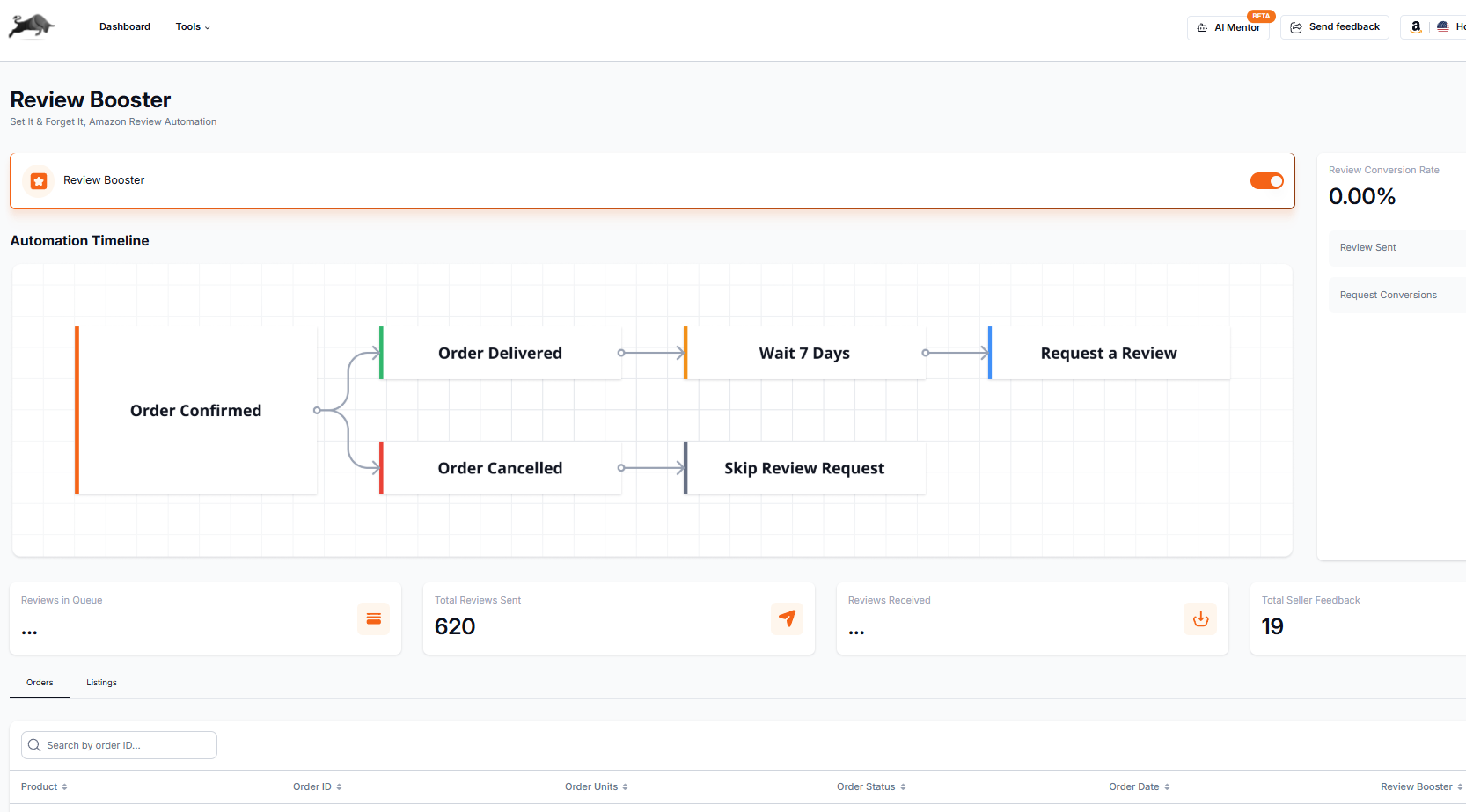
Review Booster is part of Apex Black, the dashboard, reviews and training side of Apex. It presses Amazon's Request a Review for you on eligible Amazon.com orders, after the wait you choose.
- Connect your Amazon account
Your orders come in from Amazon, and Amazon decides which of them can be asked about.
- Switch it on and choose the wait
Pick how many days to wait after delivery before the request goes out. For FBA orders, where Amazon gives apps no delivery date, delivery is estimated from the order date. Amazon's own 5 to 30 day window still applies on top.
- Leave out any listings you want
Exclusions work per listing. Leave one out and no order containing it is asked about, for every buyer alike. There is no way to leave out a buyer.
- Check the log
Every order is listed with where it stands: still in the queue, sent, or refused by Amazon. That's how you check the requests are actually going out.
Review Booster is included in every paid Apex plan. What changes from plan to plan is how many requests it sends a month.
| Plan | Price | Review requests a month |
|---|---|---|
| Beginner | $49.99 a month | 20 |
| Starter | $149 a month | Unlimited |
| Pro | $299 a month | Unlimited |
If a month's allowance runs out, the orders it didn't reach stay in the queue rather than being dropped, but any that pass day 30 in the meantime lose their chance.
What no tool can promise you
A number of reviews. A request reminds the buyer. The buyer decides. Plenty of buyers never review anything, however nicely they're asked, and any tool quoting you a review rate is quoting someone else's products.
A rating. Amazon says it calculates star ratings with machine-learned models that weigh things like how recent a rating is and whether it's a verified purchase, rather than a simple average. Nobody outside Amazon controls that.
Search rank, the Buy Box or category approvals. A review request doesn't win you any of these, so be wary of any tool that says it will.
What does earn reviews, in Amazon's own words: "You get more customer reviews by selling more units and giving buyers a great experience." The same Amazon seller guide adds that products that show up as described and arrive well packed earn more reviews over time. A request on every order makes sure none of those buyers goes unasked. It can't replace them.
What about Amazon Vine? Vine is Amazon's own program for early reviews: reviewers Amazon has invited, called Vine Voices, request your product, try it and review it. Amazon's Vine page says you need a Professional selling account, a Brand Representative or Reseller role on a brand enrolled in Brand Registry (or generic products), and eligible FBA offers, and that each parent product carries an enrollment cost that depends on how many units you offer. On a wholesale listing, that role is the brand's to give, so Vine is usually the brand's decision rather than yours.
What to watch once it's running
- Requests sent against eligible orders. If most eligible orders aren't getting a request, something in the setup is off.
- Amazon's refusals, if your tool shows them. A few window refusals on FBA orders are normal. "Invalid input." or a pile of failures on one listing is worth a look.
- Your seller feedback. The count and the rating are yours alone, which makes them the cleanest signal you have.
- Not the listing's review count. On a shared listing it moves with every seller's sales, so it tells you little about your own requests.
Reviews sit in stage 8 of the Amazon wholesale roadmap, alongside the Buy Box. If you're earlier on the road, start with the wholesale basics and come back here once orders are coming in.
Questions about automating Amazon review requests
Can I ask only my happy customers to leave a review?
No. Amazon tells sellers not to attempt to influence ratings, feedback or reviews, and asking only the buyers you expect to be happy does exactly that. The same applies to tools that filter buyers by returns, refunds or complaints. Send the same request to every eligible order.
Can I change the wording of Amazon's Request a Review email?
No. Amazon writes the message, and neither the button nor the API offers a field for your own text. If you want your own wording, that's a buyer-seller message under Amazon's communication guidelines, and it counts toward the same one request per order.
Can I send a second review request if the buyer doesn't respond?
No. Amazon allows one request per order. If you try again, Amazon answers that a review has already been requested for that order. A good tool treats that answer as done and moves on.
Is using an automated review request tool against Amazon's rules?
Not when it sends Amazon's own request. Amazon built the Solicitations API so apps could send it, and its seller page calls the button a way to send automated review requests. The rules are about what is sent and to whom: no incentives, no picking buyers, no asking for positive reviews.
What should I do about a negative review on a listing I resell?
You can't change or remove a review. If it breaks Amazon's Community Guidelines, report it from the product page. Never offer a refund or anything else to get it changed. Amazon's Customer Reviews tool, which lets a brand contact buyers who left a rating under three stars, is only for Brand Representatives of a brand enrolled in Brand Registry, so on a listing you resell that's usually the brand's job, not yours.
Does Request a Review work on orders I ship myself?
Yes. The same 5 to 30 day window applies, counted from delivery. For orders you ship yourself, Amazon gives apps the delivery window you promised, so the timing is less of a guess than it is for FBA orders.
Paste an ASIN for its Buy Box price, Amazon fees and your profit at your cost.
Review Booster presses Amazon's own Request a Review button for you on eligible Amazon.com orders. It is free to switch on until October 31, 2026, with 20 requests a month. On a plan, Beginner sends 20 requests a month; Starter and Pro send unlimited.
7 days free, then $49.99 a month, plus tax where applicable. Card required, nothing charged until day 8. Cancel any time before then.
Sources
- Communication guidelines (buyer messages), Amazon Seller Central
- Request a Review feature (Seller Central help, needs a sign-in), Amazon Seller Central
- Customer Reviews tool and how to get reviews, Sell on Amazon
- How to get reviews as a new seller (Amazon staff reply on the 5 to 30 day window), Amazon Seller Forums
- Solicitations API v1 reference, Amazon Selling Partner API
- Orders API v0 reference (delivery dates on seller-fulfilled orders), Amazon Selling Partner API
- Community Guidelines, Amazon.com Help
- Anti-Manipulation Policy for Customer Reviews, Amazon.com Help
- Customer Reviews, Amazon.com Help
- Understanding Customer Reviews and Ratings, Amazon.com Help
- Submit a Review, Amazon.com Help
- Leave Third-Party Seller Feedback, Amazon.com Help
- Customer reviews as a growth tool, Sell on Amazon
- Get customer reviews with Amazon Vine, Sell on Amazon
Some of Amazon's pages need a Seller Central sign-in to read, and we have not yet checked their current wording for this version of the page. If Amazon's page and this guide disagree, Amazon's page is the one that counts.
We build software for Amazon sellers who buy from wholesale suppliers, and we write these guides from what we see in that work.
What is an IP complaint or a Section 3 deactivation, and how do I avoid one?